Friday, October 7, 2011

ssClasses Library

ssClasses is now an open source and is part of CodePlex.  The library including the source codes will be made available for download on or before December 31, 2012.

http://vfpx.codeplex.com/wikipage?title=ssClasses

====================

This section is dedicated to show the list of ssClasses objects.  Info here will be updated from time to time as new sub-classes is added or existing ones are enhanced.  Right now, these are the list of what I wanted to include with my latest release of ssClasses objects:

  • ssExcelPivot - is the latest class which gives your app the power to easily create pivot reports inside excel even without having the knowledge to know how

  • ssAnchorSizer - When objects are resized properly via anchor properties, the insides (column widths)  of these 3 objects are left, i.e., grid, listbox, and combobox.  This class complements anchor resizing by resizing as well the insides of those 3 objects mentioned:

    • ssGridSorter - sorts your grid columns in ascending/descending order without the need for users to create their own indexes.  An arrow on the column shows which column has the current sorting and whether it is on ascending or descending order: 


      • ssToExcel - is a class that exports your cursor/table contents into excel, pdf or HTML; complete with headings, filterings, totals, formattings, etc.

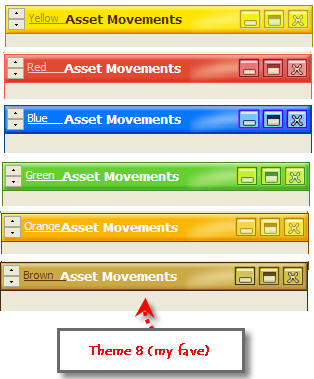
        • ssTitleBar - Gives your form a very unique appearance with 6 colors and 9 themes or a total of 54 possible looks.  Colors can be switched anytime and is retained.
          • ssSkinner - a simple spinner class that we can use to control the colors of ssclasses objects like ssTitleBar, ssButton, etc.  This also gives us the ability to change colors of grid's highlightbackcolor, container bacground, etc.  This class is also embedded in ssTitleBar class.

            • ssClose - a very simple Close button on the left side of the screen that glows

            • ssDropCalc - a dropdown calculator class that can show either value or formula.  Transfers result to its own textbox for later easy retrieval.   

            Check it from here: http://sandstorm36.blogspot.com/2011/06/ssdropcalc-dropdown-calculator-class.html


              • ssPage - a unique looking tab page to replace the native VFP Pages of a pageframe

              • ssCal - a widget looking calendar that adds beauty to your form.  Can perform immediate commands when dates are changed, comes in 6 colors:

              • ssSwitch - a sort of switch that can be used to replace checkbox or optiongroup buttons.  Originally created named Switchbox, this remake of the old class is leaner and cleaner.

              • ssButton2 - The 2nd button class I made that have 63 possible cool looks:
              Update by MK Sharma (March 16, 2012) - now the button changes color on MouseEnter.

                  • ssButton3-  a Microsoft Office 2010 button like with 6 highlight colors:. 
                  • ssButton4 - this one is colored
                    And I realized that in some cases, combining different color groups things properly like this:


                  • ssMonthCal - yet another monthly calendar class. This one absolutely have no image, all are shapes manipulated.
                  • ssPolyClock - Original author is my cousin, Glen Villar.  An analog clock that runs with 100% VFP objects and codes.  Adjusted it to give you a cool looking native VFP clock, the way ssClasses are, now with 6 skins to choose from:

                      • ssGridLock - a class that dynamically locks the left columns of your grid.   


                          ssChkBox - a class we can use replace the boring appearance of a checkbox.  Works almost the same:


                          ssContainer - Is the descendant of my ssConfiner class.  This is just like a normal container class of VFP but with added twist that this is better looking and has a sort of title bar.  Have added another feature which is if you don't put the designed width of the bar, it will auto-compute based on caption:


                          ssTab - This is a new class I am working currently.  This is better than ssPage in that this supports the ability to have icons on the tabs.  Right now it have 4 colors, inactive and active.


                          ssContainer4 - the latest design on my containers.  This one doesn't have any image whatsoever and the shapes are manipulated only by polypoints.  Click the name of the class to see its post.

                          ssOptSwitch - is my version of OptionGroup, only that it uses ssSwitches.  Have 6 themes to expect of:


                          Try clicking a class name to see if a detailed post about it has already been made.


                          ssButton3 (new)

                          November 7 update:

                          ssButton2 & ssButton3

                          Originally, changing its Enabled status will not be visually reflected outright and it will take effect only once you move your mouse pointer on top of it via MouseEnter event. Fixed that now that when you issue Thisform.ssbutton3_1.Enabled = .F., it will be refelected immediately on all objects within the class like the caption and the button itself.  Same when you turn its Enabled property back to .T.

                          ===============

                          ssButton3 is the 3rd style of my command buttons sort of class.  ssButton is shared before in weblogs.com while  ssButton2 is shared somewhere inside Foxite forum.

                          For those who are new to ssButton classes, I designed it to replace the native commandbutton object of VFP.  ssButton3 is just like a normal button in almost every way now but with better GUI and hover effect.  If you have seen MS Office 2010 where a button changes from plain color to somewhat orange highlighting, then you can imagine how ssButton3 works.  It is just like that but with additional feature that it has more highlight colors to choose from (I made the default yellow) and you can choose between SpecialEffect of 3D or Hot Tracking (also known as Hover Effect by some).

                          Here is a sample image of that on one of my modules here.  Mouse pointer is over Search button and so the color has changed into yellow.  If you will take a closer look, ssbutton3 has a glow effect inside which makes the appearance better:


                          Its usage is very simple.  To set the appearance of the button, just double-click it and in its INIT event, place something like what is shown below.  Intellisense will aid you in knowing the proper settings and proper naming convention is used to guide users whether it is numeric, character, logical, etc.:


                          Right now, it has 6 possible hover color to choose from:

                          1 = red
                          2 = green
                          3 = yellow (default)
                          4 = orange (just like MS Office 2010)
                          5 = brown
                          6 = blue


                          One major improvement of this new class (as well as ssContainer2) over its ancestors is that the button is no longer a dull plain square.


                          ssContainer's curvature, I forgot to mention on its own blog, can be changed by the user.  I have added that now as well to ssButton3.  The hover effect on focus is running on default curvature while the ones above it I set to 40 just to show here how it will look like:


                          And for comparison, I will show ssButton2 & 3 side by side here:


                          For the current listing of ssClasses, click this link:  http://sandstorm36.blogspot.com/2011/10/ssclasses-components-list.html


                          Thursday, October 6, 2011

                          ssMonthCal class


                          This class is based on my ssCal sub-class.  The main differences are it does not contain a front page, it does not contain any outside image, it is easier for user to navigate between months and years, and it will not clutter your form where this class will be dragged with a lot of unnecessary objects that the class has.

                          This is an experiment how to make some of my classes pretty without the need for an outside image and I think I can safely say that the experiment is a success.  This class uses all native VFP objects like shapes, optiongroup, spinner and combobox.  This is neater and leaner both in objects and codes versus its ancestor ssCal classes.

                          Since ssClasses are known for its ability to provide the developer different colors as each of us has our own taste, right now this have 7 colors:


                          Its usage is really simple.  Just drag it in your form and it will work on default values which is Green (4) and current date.  If you want to specify the color or the date, then double-click it and on its INIT event, type:

                          This._settings(6,date()-5)  

                          That will mean color blue and date will be current date minus 5 days.  Colors are numbered 1 to 7:
                          1 = red
                          2 = orange
                          3 = yellow
                          4 = green (default)
                          5 = brown
                          6 = blue
                          7 = pink

                          This class can immediately perform any action when the date is changed.  Let us say that you have a grid on your form and that you wanted to repopulate it with new values based on the date you will select on the class.  So in the class' CLICK event, do something like this:

                          Click Event:
                          thisform._gridrefresh()    && a method that will repopulate the grid with an SQL SELECT...

                          To get its value is just like on any other native VFP objects.

                          ldDate = thisform.ssMonthCal1.Value
                          Messagebox(thisform.ssMonthCal1.Value)

                          Note:  The title bar you see here is ssTitleBar class and is using Theme 3 Blue.  ssTitleBar can change the color of the title bar on the spot via ssSpinner class embedded onto it (left side of the bar).

                          See a sample below (click it to see the actual size):


                          For the current listing of ssClasses, click this link:  http://sandstorm36.blogspot.com/2011/10/ssclasses-components-list.html


                          Monday, October 3, 2011

                          Password Protect Multiple Excel Files

                          Our Laboratory Manager came to my room this morning and asked me how to password protect an excel sheet.  That is so his department can comply with one of the local government's requirement to ensure that the worksheets won't be easily accessible to others in case they gain access to his office' files.  And I showed him how. 

                          He said that can I please assist him creating those passwords for his excel report files and I said "sure" without realizing the enormity of that simple request. 

                          So I started opening his excel file, saving it again this time with password protection, opening another and doing the same thing again........ until I reached the 20th file on the current folder (there are some more folders) where I started to get impatient.  So I stopped what I am doing and decided to see how many files I needed to protect, so, right-click  properties.... darn! 2,765 excel files!!!!  Darn again!

                          Anyway, I said to myself, why am I wasting my time doing it manually when we can automate it?  Sometimes it escapes my mind that we are developers, LOL!

                          Thursday, September 29, 2011

                          ssTitleBar

                          ssTitleBar is my final design for a title bar class. This does not mean though that the themes shown here will be the final ones.  From time to time, I still get the urge to create new looks or themes.  This class is the successor of my early title bar classes up to ssTBNextGen.  History of those can be seen in some of my early posts including this one: http://weblogs.foxite.com/sandstorm36/archive/2009/12/15/9724.aspx

                          The major difference between those early classes and this now is that ssSkinner is embedded here to give users the ability to hot-skin (change color any time) the title bar.  Below is my favorite theme, theme 8:

                          And here are the other themes I previously created:

                          You may wonder maybe why I created ssTitleBar when what is currently in the market now is Glass Title Bars.  The answer to that is I wanted my forms to be unique and totally independent of an OS Theme.  It will not matter if you will be running XP, 7, 98 or any other OS.  The appearance of my forms will be uniform, not to mention that VFP Projects powered by ssClasses will really be unique.

                          Another side-feature that ssTitleBar class has is that unlike the standard Title Bar, you can put objects on top of it like command buttons, a clock maybe, a printer icon or label maybe?   Well actually it is up to you what you wanted to do with this later...


                          For the current listing of ssClasses, click this link:  http://sandstorm36.blogspot.com/2011/10/ssclasses-components-list.html


                          ssContainer2 (new)

                          I don't know what prompted me to create a new container class which will replace ssContainer but that is what has happened.  Maybe because of the curvature feature that was requested to me to by MK Sharma last time or maybe some other things.  But the outcome I deem is nice.  Take a look at how ssClasses affects the appearance of a form.  Shown below is a form with standard objects  only (with the exception of Ony Too's datepicker class):


                          And this is how it looks like with just the ssTitlebar class and the new ssContainer2 class:

                          Friday, September 23, 2011

                          Glass PageFrame (sort of)

                          With the coming of Windows 7 glass style, everybody seems to want to have its effect incorporated into our projects.  Though this is really not Glassy as it is more transparent, I still decided to call this Glass PageFrame as I know it will attract more attention (Nasty reasoning), LOL!
                          This is very simple to implement but the impact is cool.
                          Ready?  Then follow these 7 steps (some are optional):
                          1. Initially hide the tabs of the PageFrame
                          2. Themes property should be set to .F.
                          3.  Change the tabs’ Backstyle to 0 (transparent).  Note that while tabs are shown (default), VFP will not allow you to change the backstyle that is why we need to hide those first.
                          4.  Add a container inside pages so the inner part of the pageframe will appear normal and only those outside of that container will appear transparent
                          5.  Optionally, you can change the style of the container into 3 (Themed) which adds effect to the Glass-like interface you wanted to achieve
                          6.  Change the forecolor of the tabs to mix properly with the background
                          7.  Finally, show the tabs again.
                          And that is it.  Told you it is very simple.  Enjoy!


                          And here are the codes:


                          Source code

                          Local oForm As Form
                          oForm = Createobject('GlassPage')
                          oForm.Show(1)
                          Return
                           
                          Define Class GlassPage As Form
                          	AutoCenter = .T.
                          	Height = 370
                          	Width = 341
                          	Caption = "Glass PageFrame"
                          	Picture = Addbs(Getenv("WinDir"))+"Prairie Wind.bmp"
                           
                          	Add Object label1 As Label With;
                          		left = 24,;
                          		Top = 23,;
                          		Width = 300,;
                          		WordWrap = .T.,;
                          		AutoSize = .T.,;
                          		BackStyle = 0,;
                          		FontSize = 8,;
                          		FontName = "Tahoma",;
                          		ForeColor = RGB(255,255,255),;
                          		Caption = "This simple demonstration will show how to make a PageFrame "+;
                          		"tranparent.  Seems nice to combine with Windows 7 Glass Effect. "+;
                          		CHR(13)+CHR(10)+CHR(13)+CHR(10)+;
                          		"Additional Effect has been implemented on the container inside the pageframe "+;
                          		"via Style property (as shown on page1)."
                           
                          	Add Object GlassPage As PageFrame With ;
                          		Left = 22, Top = 120, Width = 295, Height = 200, PageCount = 2,;
                          		Themes = .F., Tabs = .F., TabStyle = 1
                           
                          		ADD OBJECT command1 as commandbutton WITH ;
                          		left = 22, top = 330, Caption = "\<Change Background", AutoSize = .T.
                           
                          	Procedure Load
                           
                          	Endproc
                           
                          	Procedure Init
                          		With Thisform.GlassPage.Page1
                          		    .BackStyle = 0
                          			.Caption = "Master"
                          			.ForeColor = Rgb(255,255,0)
                          			.AddObject("Cont1","Container")
                          			With .Cont1
                          				.Top = 10
                          				.Left = 10
                          				.Visible = .T.
                          				.BackStyle = 1
                          				.Width = 270
                          				.Height = 145
                          				.SpecialEffect = 1
                          				.Style = 3
                          			Endwith
                          		Endwith
                          		With Thisform.GlassPage.Page2
                          		    .BackStyle = 0
                          			.Caption = "Transactions"
                          			.ForeColor = Rgb(255,255,0)
                          			.AddObject("Cont1","Container")
                          			With .Cont1
                          				.Top = 10
                          				.Left = 10
                          				.Visible = .T.
                          				.BackStyle = 1
                          				.Width = 270
                          				.Height = 145
                          				.SpecialEffect = 1
                          				.BackColor = RGB(202,202,255)
                          			Endwith
                          		Endwith
                          		Thisform.GlassPage.Tabs=.T.
                          	ENDPROC
                           
                          	PROCEDURE Command1.Click
                          	   thisform.Picture = GETPICT()
                          	ENDPROC 
                           
                          Enddefine